Guide
How to schedule cleaning jobs and send shifts to your crew
In Arbon, open Schedule and fill in Put a clean on the calendar: the client, the property, the day, the start time, the hours and the price. Tick the people who should do it and each of them gets a shift to confirm. The month view then shows what every day is worth and who still has to say yes.
Step 1
Open the schedule
Schedule opens on the month. Each day shows the money booked on it, how many cleans and how many hours. An amber dot means a shift is still waiting on an answer; a red one means somebody has said they cannot make it.
The strip across the top is the next two weeks in labor hours, set against how many hours your crew can work in a day. A day that runs past it is a day you are short.
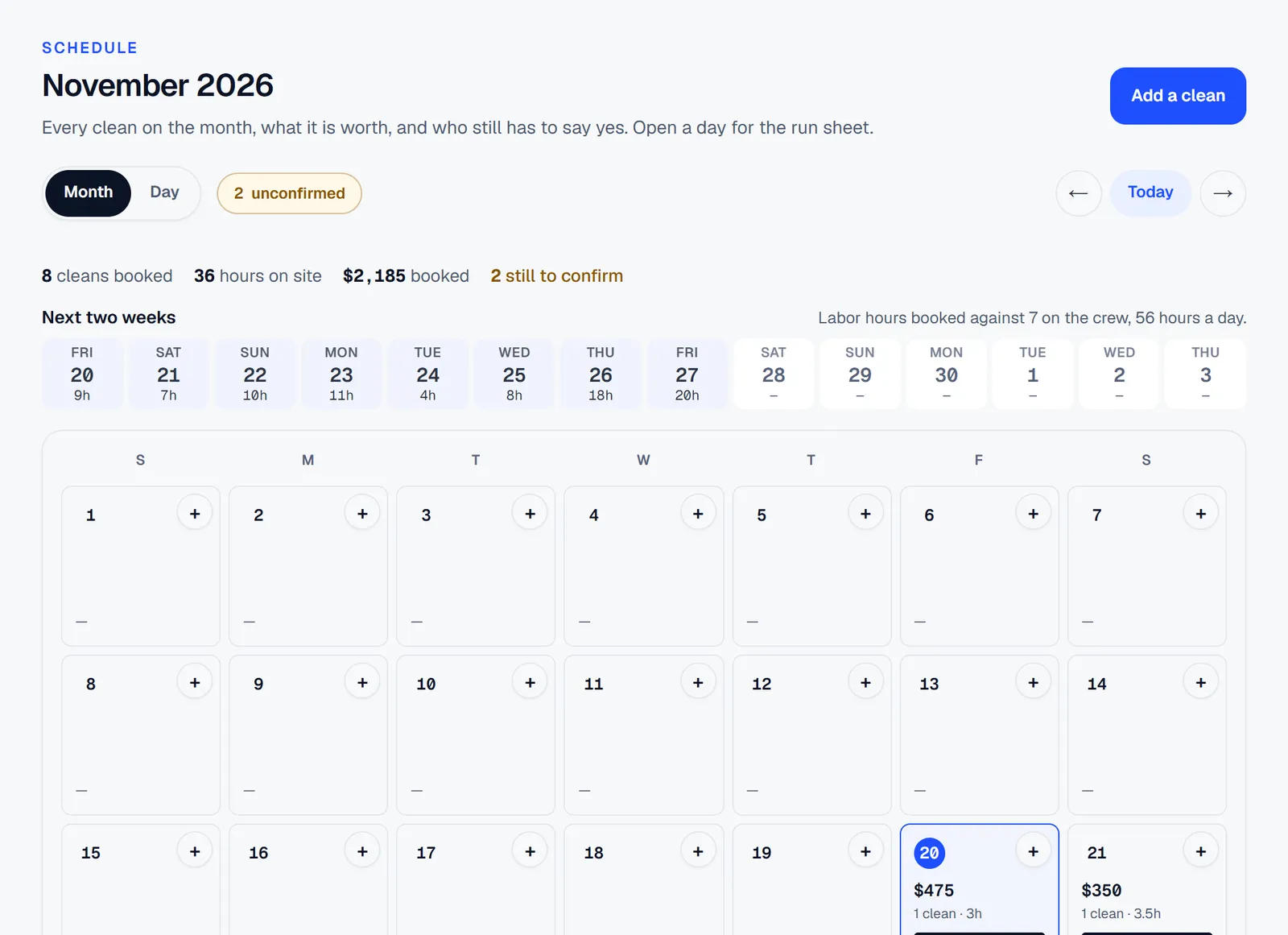
The month at a glance: cleans, hours and money booked, and two shifts still unconfirmed. Step 2
Put a clean on the calendar
Below the month is the form for a new clean. Pick the client and the property, then the day, the start time and how many hours it takes. Add the price now or leave it blank and add it later.
For a regular client, set Repeats to every week, every other week or every month, and give it an end date if there is one. The visits appear on the calendar as their own cleans, so one can move without moving the rest.
Tick Save as a draft when the office still needs to shuffle people around. The crew sees nothing until you publish it.
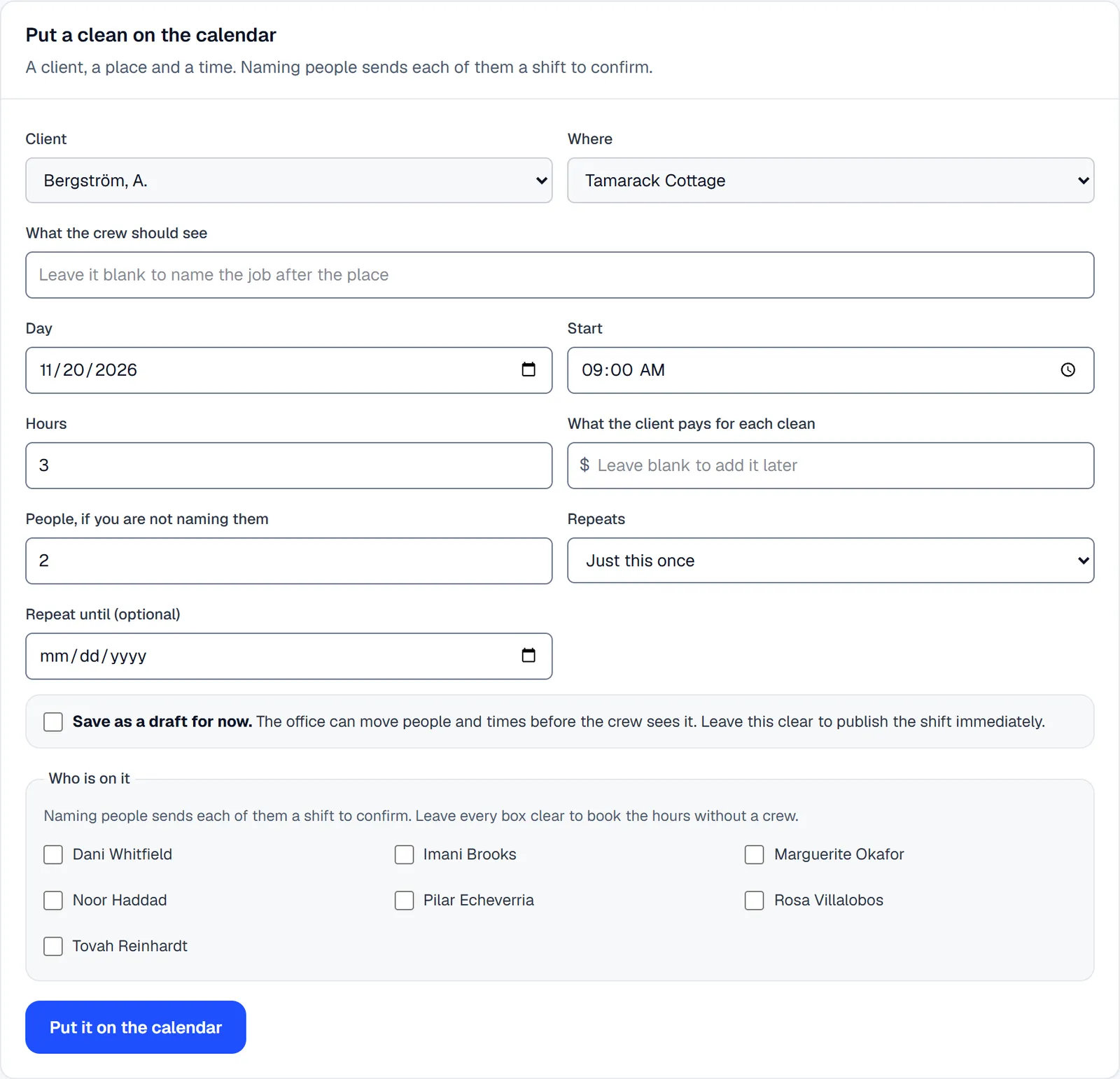
Naming people here sends each of them a shift to confirm. Step 3
Choose who is on it
Tick the cleaners for the job under Who is on it. Each person gets the shift on their phone and confirms it. If you leave every box clear, the hours are booked without a crew and the job shows up under Unassigned.
Step 4
Find any job later
Jobs lists every clean in date order. The filters along the top pull out today, this week, the jobs with nobody on them and the finished visits that still have no invoice.
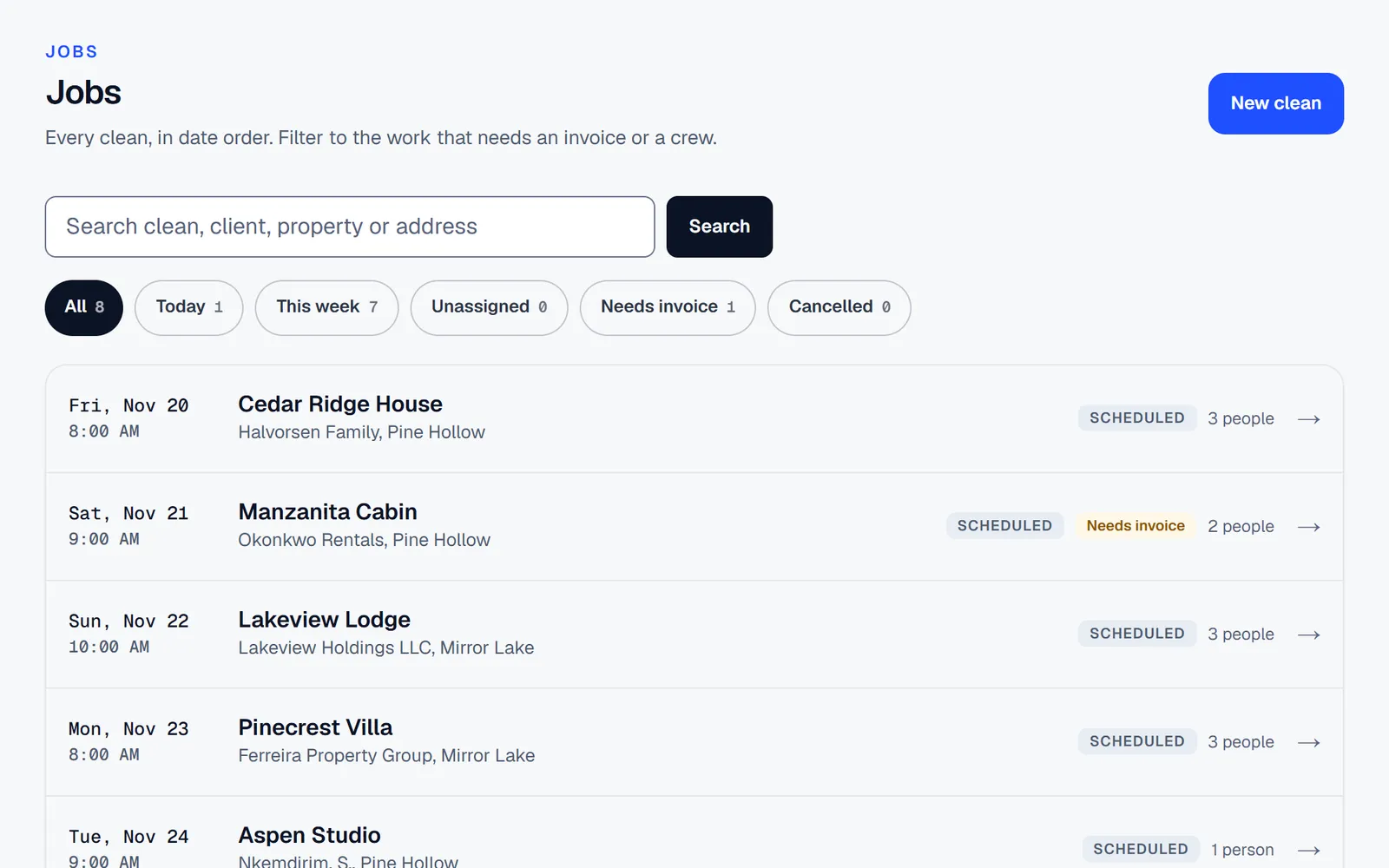
Needs invoice is the filter worth checking every Friday. Step 5
Change a job without starting again
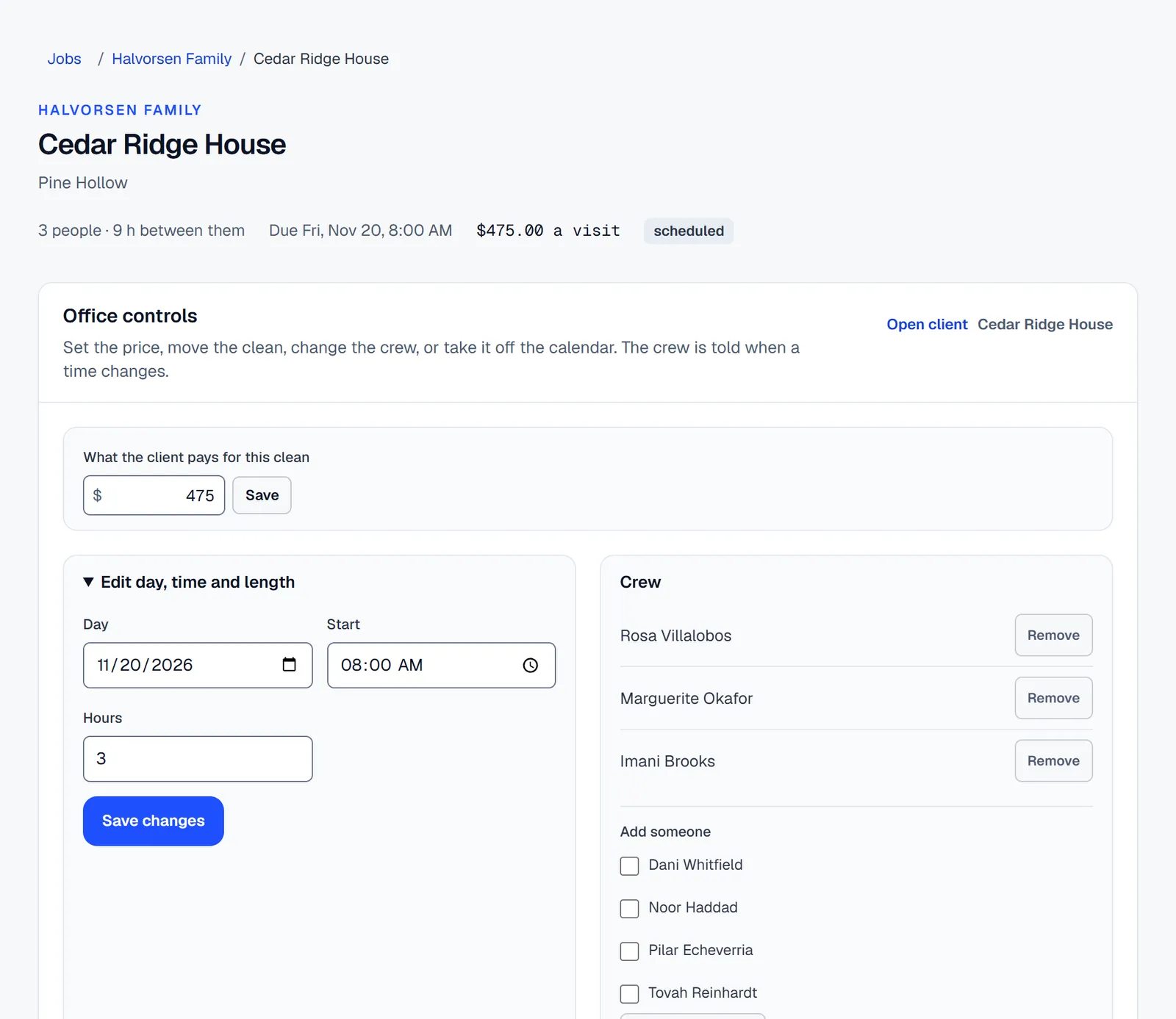
Open a job to change its price, move the day or the time, or swap who is on it. The crew is told when anything they need to know changes.
The access notes, such as the lockbox code and the dog, sit on the property, so they follow every future clean there.
Questions people ask next.
Short answers, with the same limits the guide has already stated.
Can a cleaner turn a shift down?
Does it sync with Airbnb or Vrbo?
The next step
Try it on one real week.
Put a week of cleans on the calendar, send the crew their shifts and invoice from the visits. 60 days free.
No card. Cancel from settings.