Guide
How to add Arbon to your iPhone home screen
Open arbon.app in Safari, tap the Share button, tap View More, then choose Add to Home Screen and tap Add. Arbon then opens from its own icon in a full-screen window, keeps the clock running without signal and can send notifications. There is no App Store download and nothing to update.
Step 1
Open the site in Safari
Go to arbon.app/install in Safari. If the link opened inside Instagram, Facebook or an email app, tap the three dots and choose Open in Safari first. The browser inside another app cannot add anything to the home screen.
Step 2
Tap Share, then View More
Tap the Share button: the square with an arrow pointing up. On recent versions of iOS it sits behind the three-dot button next to the address bar.
The sheet opens with a short row of actions. Tap View More to see the full list.
Step 3
Choose Add to Home Screen
Tap Add to Home Screen. The name is filled in as Arbon; leave it, then tap Add in the top corner.
The icon lands on the next free spot on your home screen. Press and hold it to move it next to your other work apps.
Step 4
Open it from the icon
From now on, open it from the icon rather than from Safari. It starts on Today, without an address bar, and the clock and checklist save to the phone first, so a basement with no bars does not stop a shift.
Notifications only work once it is on the home screen. That is an Apple rule, and the reason this step matters for a crew.
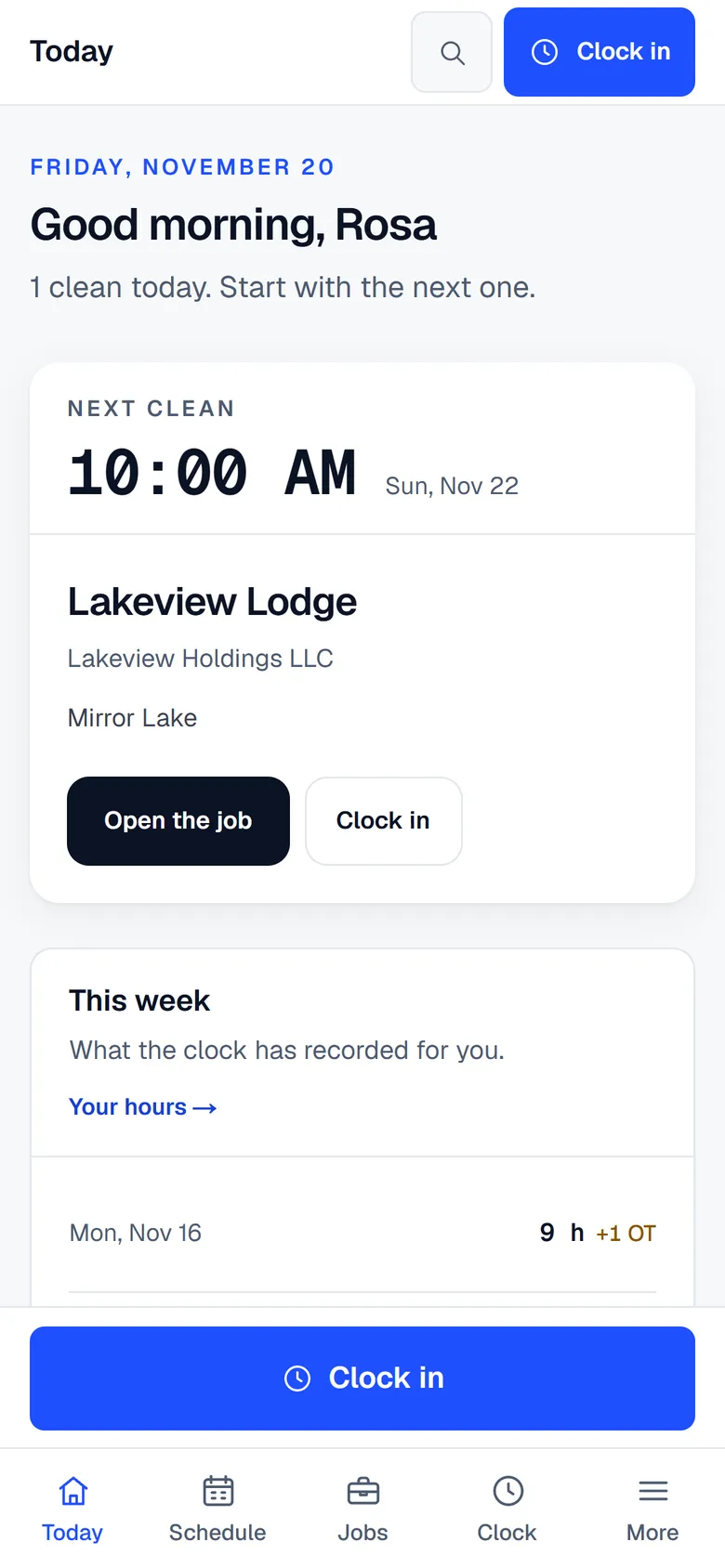
What a cleaner sees when they open it: the next clean, a way into the job and the clock.
Questions people ask next.
Short answers, with the same limits the guide has already stated.
Is there an App Store version?
Does it work on Android?
Does every cleaner need to do this?
The next step
Try it on one real week.
Put a week of cleans on the calendar, send the crew their shifts and invoice from the visits. 60 days free.
No card. Cancel from settings.